My SSH Portfolio
This is my live SSH portfolio. You can connect to it here:
ssh joesluis.dev
Source code: https://github.com/JoeS51/joe-ssh
Motivation
I remember seeing people publish portfolios you visit over SSH, and wondering:
- how that is possible
- how people host it
I was curious enough to build it myself, so this post covers what SSH is, why you might build one, how Charm makes it easy, and how to host it without breaking your admin access.
What is SSH (quickly)?
SSH (Secure Shell) is a protocol that lets you securely connect to another machine over the internet and get a terminal session. It wraps the connection in encryption and uses keys or passwords to authenticate the client.
ssh user@server.com
Common uses:
- managing servers (deploys, logs, restarts)
- moving files securely (scp over SSH)
- setting up tunnels for private services (port forwarding)
But SSH does not have to be just for sysadmin work. In this case, it can be used for something more fun like an SSH portfolio.
What is an SSH portfolio?
It is a terminal UI that people can SSH into and explore, like a regular portfolio website, but inside the terminal.
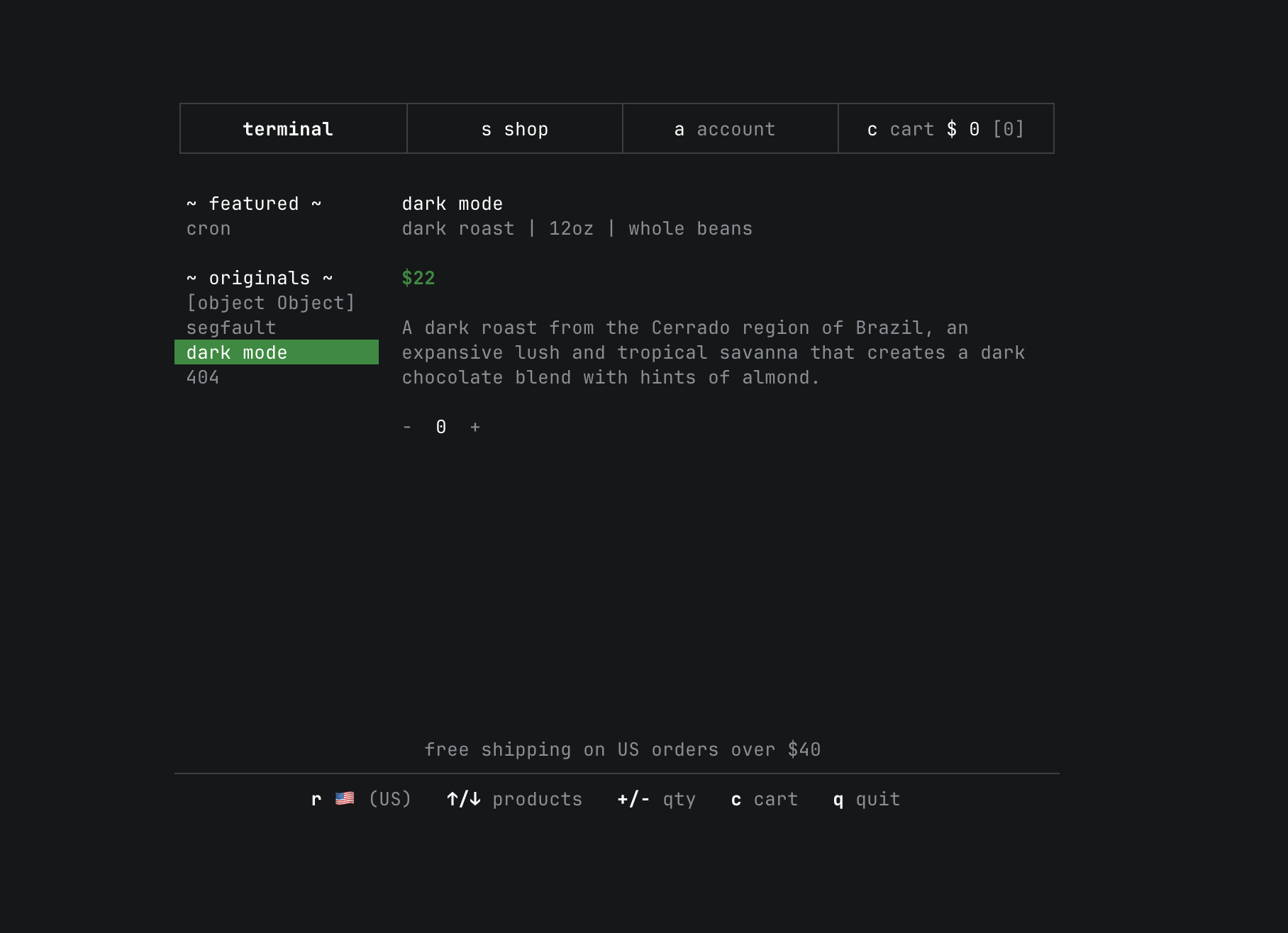
If you have seen ThePrimeagen's terminal.shop, that is a great example of what I was going for.
How to build your own
There are frameworks that make it easier to build terminal user interfaces (TUIs) without wiring everything from scratch. I decided to build mine using the Charm stack, which is a Go-based toolkit for SSH apps and terminal UIs.
When people say "Charm stack" for SSH apps, they usually mean:
- Wish: an SSH server that boots your TUI per connection
- Bubble Tea: the state machine that renders the UI and handles input
- Bubbles: reusable UI components like lists, text inputs, and spinners
- Lip Gloss: styling primitives (colors, layout, borders) for the terminal
How to use the Charm stack
The workflow is simple:
- Set up a tiny Go project and install the Charm stack.
mkdir ssh-portfolio
cd ssh-portfolio
go mod init ssh-portfolio
go get github.com/charmbracelet/wish   github.com/charmbracelet/wish/bubbletea   github.com/charmbracelet/bubbletea   github.com/charmbracelet/ssh   github.com/charmbracelet/lipgloss
- Clean up the module files so everything resolves cleanly.
go mod tidy
- Create main.go with the server + UI code.
package main

import (
    tea "github.com/charmbracelet/bubbletea"
    "github.com/charmbracelet/lipgloss"
    "github.com/charmbracelet/ssh"
    "github.com/charmbracelet/wish"
    wishtea "github.com/charmbracelet/wish/bubbletea"
)

type model struct {
    title string
    sections []string
}

func initialModel() model {
    return model{
        title: "Joe Sluis - SSH Portfolio",
        sections: []string{"About", "Projects", "Experience", "Contact"},
    }
}

func (m model) Init() tea.Cmd {
    return nil
}

func (m model) Update(msg tea.Msg) (tea.Model, tea.Cmd) {
    switch msg := msg.(type) {
    case tea.KeyMsg:
        switch msg.String() {
        case "q", "ctrl+c":
            return m, tea.Quit
        }
    }

    return m, nil
}

func (m model) View() string {
    titleStyle := lipgloss.NewStyle().
        Bold(true).
        Foreground(lipgloss.Color("#E2E8F0")).
        Background(lipgloss.Color("#0F172A")).
        Padding(0, 1)

    sectionStyle := lipgloss.NewStyle().
        Foreground(lipgloss.Color("#94A3B8"))

    footerStyle := lipgloss.NewStyle().
        Foreground(lipgloss.Color("#64748B"))

    output := titleStyle.Render(m.title) + "\n\n"

    output += "Sections:\n"
    for _, section := range m.sections {
        output += sectionStyle.Render("- " + section) + "\n"
    }

    output += "\n" + footerStyle.Render("Press q to quit.") + "\n"

    return output
}

func main() {
    server, _ := wish.NewServer(
        wish.WithAddress("0.0.0.0:2222"),
        wish.WithHostKeyPath(".ssh/host_ed25519"),
        wish.WithMiddleware(wishtea.Middleware(teaHandler)),
    )

    _ = server.ListenAndServe()
}

func teaHandler(s ssh.Session) (tea.Model, []tea.ProgramOption) {
    return initialModel(), []tea.ProgramOption{
        tea.WithAltScreen(),
    }
}
- Generate a host key (Wish needs one to run SSH).
mkdir -p .ssh
ssh-keygen -t ed25519 -f .ssh/host_ed25519 -N ""
- Run the server locally.
go run .
- In another terminal, connect to it.
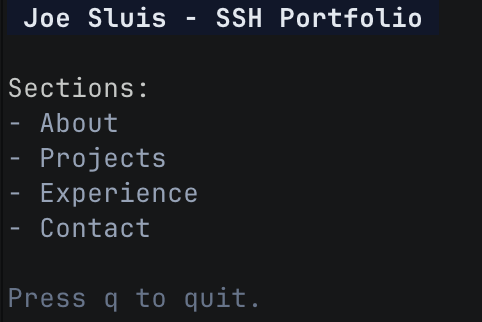
ssh localhost -p 2222
What is happening here:
- Wish bootstraps SSH: wish.NewServer spins up an SSH server and listens on a port (2222 here so it is safe in development)
- Host keys: WithHostKeyPath points to the server key, which SSH uses to identify your host
- Per-connection UI: wishtea.Middleware connects each incoming SSH session to a Bubble Tea program. Think of it as “start a fresh TUI for every user.”
- Alt screen: tea.WithAltScreen() gives you a clean terminal buffer that exits without leaving artifacts
- Basic styling: Lip Gloss styles the title, section list, and footer without adding much code
Once this is running, you can SSH into it locally with: ssh localhost -p 2222 and see whatever UI your model renders.
How the UI works (based on the main.go code above):
- Model: your app state. Here it is just a title string, but you can add sections, selected index, or data fetched from files
- Init: runs once at startup. Returning nil means “no initial command.” Later you can return commands to load data or start timers
- Update: handles input and state changes. When the user hits q or ctrl+c, we return tea.Quit to exit the program
- View: converts your state into a string. This is where you build layout (Lip Gloss) or render lists (Bubbles)
This loop (Init → Update → View) is the Bubble Tea mental model. Start simple, then add a list component for sections, use Lip Gloss to style headers, and map keys to navigate between pages in your portfolio.
This is enough to prove the end-to-end flow. Once it works, replace the view with a list (Bubbles), add styling (Lip Gloss), and add sections for projects, about, and contact.
Hosting options (Azure, EC2, Fly.io)
You can host this anywhere that gives you a public IP and lets you control port 22:
- Azure VMs
- AWS EC2
- Fly.io
I went with EC2 because I had AWS credits.
Build and ship the binary (EC2 example)
Before you can run it on a VM, you need a Linux binary and a way to copy it over.
- Build a Linux binary locally.
GOOS=linux GOARCH=amd64 go build -o ssh-portfolio
- Copy it to your EC2 instance with scp.
scp -i ~/.ssh/your-key.pem ./ssh-portfolio ec2-user@your-ec2-ip:/home/ec2-user/ssh-portfolio
- SSH into the instance and make it executable.
ssh -i ~/.ssh/your-key.pem ec2-user@your-ec2-ip
chmod +x /home/ec2-user/ssh-portfolio
If your instance is arm64 (like Graviton), swap GOARCH to arm64.
Run it on your VM
If you just want to see it live fast, run it on a high port first (for example 2222) and connect to that port.
- SSH into your instance.
ssh -i ~/.ssh/your-key.pem ec2-user@your-ec2-ip
- Run the binary (this example listens on port 2222).
./ssh-portfolio
- From your laptop, connect to it.
ssh -p 2222 ec2-user@your-ec2-ip
Optional: move to port 22 + add a domain
If you want the clean ssh yourdomain.com experience, you can move your admin SSH to a different port and let your portfolio own port 22.
- Change the admin SSH port to 22022 in /etc/ssh/sshd_config, then restart SSH.
sudo systemctl restart sshd
-
Update your firewall/security group:
- TCP 22022 from your IP (admin)
- TCP 22 from the world (portfolio)
-
Update your server to listen on port 22, rebuild, and re-copy the binary. In main.go, change wish.WithAddress to 0.0.0.0:22.
-
Allow your binary to bind to port 22 and run it:
sudo setcap 'cap_net_bind_service=+ep' /home/ec2-user/ssh-portfolio
./ssh-portfolio
-
Point your domain at the VM’s public IP (DNS A record). Use DNS only if you are on Cloudflare.
-
Test it:
ssh yourdomain.com
Congrats, you just got a basic SSH portfolio up and running.